CapCut works differently on mobile and on desktop, and cropping is one of the places where that difference actually matters. On mobile, you crop with a pinch gesture. On desktop, you drag a crop box with a mouse. Mix up the two workflows and you'll spend ten minutes looking for a button that isn't there. Here's exactly how each one works, plus how to avoid the quality loss and stretched footage that trip up most people.
In Short: How to Crop a Video on CapCut
- On CapCut mobile, tap your clip, open the Aspect Ratio (or "Format") button, then either pick a preset ratio (9:16, 1:1, 16:9) or pinch-to-zoom for a freeform crop.
- On CapCut desktop, select the clip on the timeline, click "Crop" in the toolbar above it, then choose Free or a fixed ratio and drag the crop box.
- Crop and Ratio are two different tools on desktop. Crop reframes within the clip, Ratio changes the whole project's export aspect ratio.
- Cropping is non-destructive, so you can adjust or undo it (Ctrl/Cmd+Z on desktop, the undo button on mobile) any time before exporting.
- To avoid quality loss, start from a high-resolution clip and avoid zooming too far into the crop area.
Video Tutorial
How to Crop a Video on CapCut Mobile (iPhone and Android)
The mobile app handles cropping through touch, not drag handles. Here's the sequence:
- Open your project and tap the clip on the timeline to select it.
- Tap the Aspect Ratio (sometimes labeled "Format") icon at the bottom of the screen.
- Choose a preset ratio, 16:9, 9:16, 1:1, or 3:4, to snap the frame instantly.
- Or, for a freeform crop, use a two-finger pinch gesture directly on the preview: pinch in to zoom and crop tighter, spread out to reveal more of the frame.
- Preview the result, then confirm.
This is the part that confuses people coming from desktop tutorials. Mobile doesn't give you draggable corner handles like desktop does, the freeform crop is entirely gesture-based. If a guide tells you to "drag the corners" on your phone, it's describing the desktop workflow by mistake.
If you need to undo a crop on mobile, there's no keyboard shortcut, use the dedicated undo button in the editing interface, since the app is touch-only.
Once your crop is set, adding captions is usually the next step. Here's how to add text in CapCut.
How to Crop a Video on CapCut Desktop (Mac and PC)
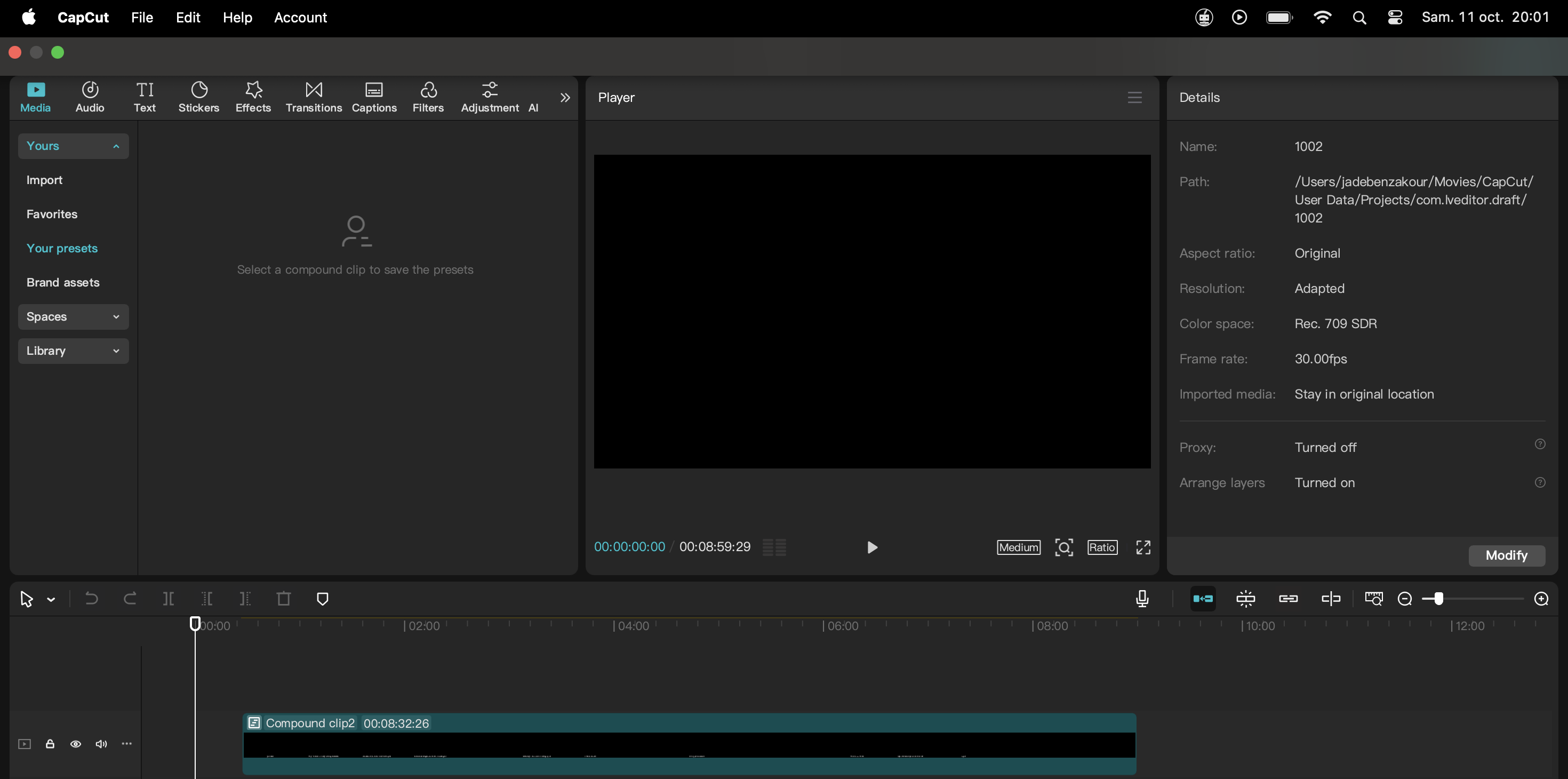
Desktop gives you more manual control, and it's mouse-driven from start to finish:
- Import your clip and drag it onto the timeline.
- Click the clip to select it. You'll see a white border and a toolbar appear above the timeline.
- Click "Crop" in that toolbar to open the crop panel.
- Choose "Free" for a manual crop, or pick a fixed ratio (9:16, 3:4, 1:1, 16:9, 4:3).
- Drag the corners of the crop box to resize and reposition it over the area you want to keep.
- Click "Confirm" or "Apply" to lock in the crop.
Here's the distinction most guides skip. "Crop" and "Ratio" are two separate buttons on desktop, and they do different things. Crop reframes the content inside your clip, removing what's outside the box you draw. Ratio changes the aspect ratio of the entire project canvas, which affects your final export dimensions regardless of what any individual clip looks like. If your video looks right in the crop preview but wrong on export, check which of the two you actually adjusted.
On export, keep an eye on resolution, frame rate, and bitrate. Quality holds up as long as your export resolution matches or exceeds the effective resolution of your cropped area. Crop too tight on a lower-res source and you'll export softer footage than you started with.
Cropping pairs well with cleaning up the frame in other ways. See how to remove a background in CapCut for another framing tool that works alongside it.
CapCut Mobile vs. Desktop: Which Workflow Fits Your Edit
Most guides only cover one platform, which is exactly why crop instructions online are so often confusing. Half of what you read doesn't apply to the app you're actually using. Here's the side-by-side:
Want to browse every other CapCut tutorial we've published? Start with the full CapCut learning hub.
How to Adjust Your Aspect Ratio for TikTok, Instagram, and YouTube
Cropping usually isn't the end goal, it's how you get a clip to actually fit the platform you're posting to. Current standard ratios:
- TikTok: 9:16 (vertical)
- YouTube: 16:9 (horizontal), standard for long-form and tutorials
- Instagram / Facebook Stories: 9:16 (vertical)
- Instagram / Facebook feed: 4:5
Crop before you add text or overlays, not after. If you adjust the ratio once your captions and graphics are already placed, they'll shift off-center and you'll have to reposition everything by hand.
CapCut's auto-reframe feature can also detect your subject and keep it centered automatically when you switch ratios. It's a genuine time-saver, but it isn't perfect. Fast motion or multiple people in frame can throw it off, so always check the preview before exporting.
Once your frame is set, a clean transition between clips finishes the look. See how to craft aesthetic transitions in CapCut.
Crop vs. Resize vs. Ratio on CapCut: What Actually Changes?
These three terms get used interchangeably, but they control different things:
- Crop removes part of the visible frame, you lose the pixels outside the box you draw.
- Resize scales the entire clip up or down within the canvas, nothing is removed, the content just gets bigger or smaller.
- Ratio sets the dimensions of the canvas and export itself, independent of any single clip.
In practice: if you want a tighter close-up on someone's face, you crop. If you want the whole shot smaller to make room for other elements, you resize. If you're prepping the entire project for a different platform, you adjust the ratio. A Miracamp video editing instructor's rule of thumb for talking-head content: crop in for emphasis during a key line, and resize out when you need the full frame back for context. Cutting between the two keeps pacing tight without needing extra footage.
Frequently Asked Questions
Why does my video look stretched or distorted after cropping on CapCut?
This happens when the horizontal and vertical dimensions get adjusted independently instead of together, usually from dragging one edge of the crop box without the ratio locked. Lock the aspect ratio or use a preset instead of a fully manual crop to avoid it.
Does cropping a video on CapCut reduce its quality?
It can, but only if you zoom in aggressively on a lower-resolution source. Start from the highest-resolution clip available and match your export settings to at least the effective resolution of your cropped area, and quality loss is minimal to unnoticeable.
How do I undo a crop on CapCut?
On desktop, use Ctrl+Z (Windows) or Cmd+Z (Mac). On mobile, tap the dedicated undo button in the editing interface, there's no keyboard shortcut on touch devices.
Can I save multiple versions of the same clip on CapCut?
Yes. Cropping in CapCut is non-destructive, so you can duplicate a clip and apply a different crop or ratio to each version, useful when you need the same footage formatted for TikTok, YouTube, and Instagram feed without re-editing from scratch.
Is cropping free on CapCut, or does it require CapCut Pro?
The crop tool is free on both the mobile app and the desktop app, with no watermark added to your export.
Where can I learn CapCut and video editing in more depth?
Cropping is one small piece of a much bigger editing toolkit. If you want to go from knowing individual tools to actually producing polished, platform-ready videos, check out Miracamp's CapCut course.