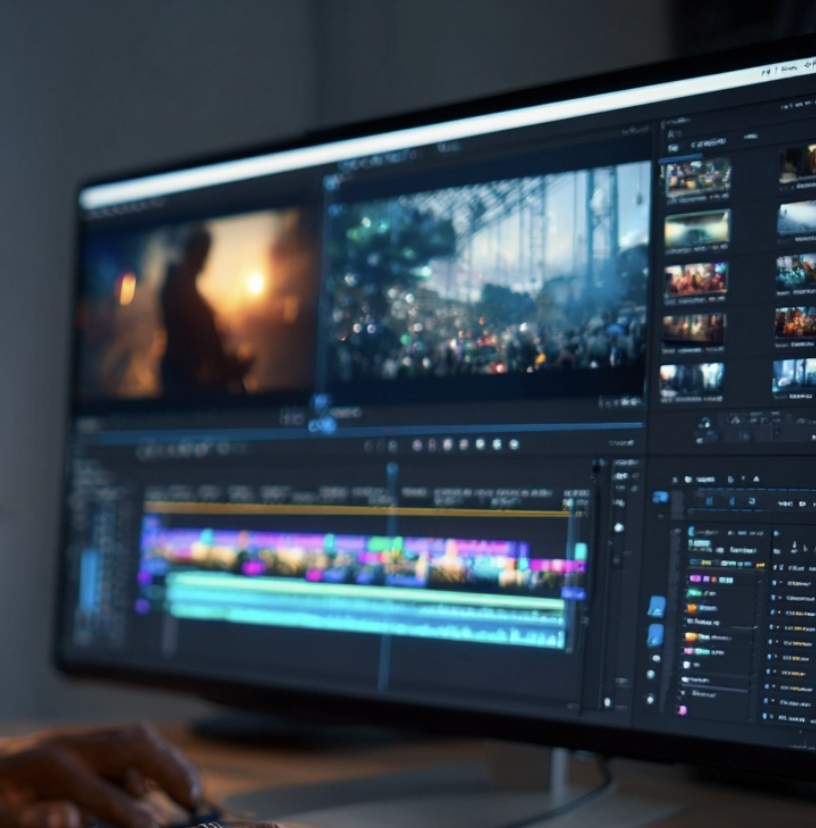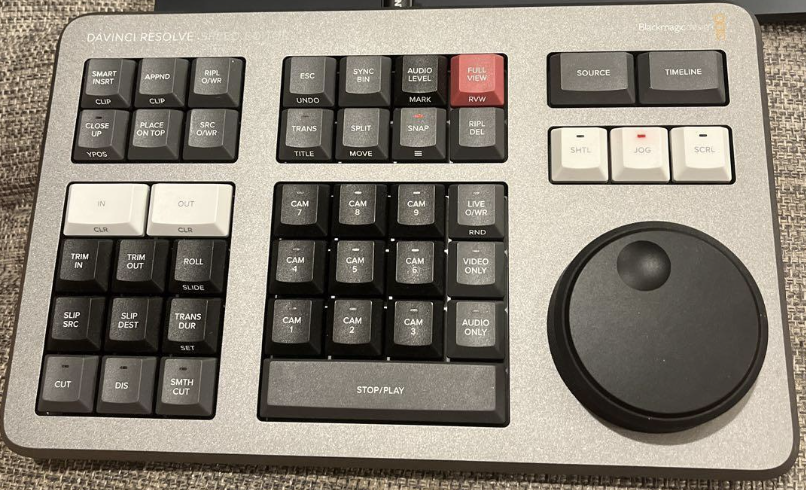
Choosing the best graphics card for video editing isn’t just about frame rates—it’s about smooth playback, faster rendering, real-time effects, and a stable editing experience. Whether you're working in Adobe Premiere Pro, DaVinci Resolve, or Final Cut Pro, your GPU plays a huge role in accelerating performance.
In this guide, we break down the top GPUs for video editors in 2026, from budget-friendly options to professional-grade beasts for 4K+ workflows.
To get the most out of your GPU investment, it’s also important to pair it with software that fully leverages hardware acceleration, which is why this overview of video editing softwares is useful when planning your setup.
Why the GPU Matters for Video Editing
While your CPU handles decoding and exporting, GPU acceleration speeds up:
- Real-time playback of high-resolution footage
- Rendering previews and exports
- Color grading and LUT previews (especially in DaVinci Resolve)
- AI effects, stabilization, and noise reduction
- Encoding H.264/H.265 footage (in supported apps)
Without a powerful GPU, your editing timeline may lag, effects may stutter, and render times will skyrocket—especially with 4K, 6K, or 8K footage.
If you work extensively with color grading, understanding how GPU power impacts nodes, LUTs, and real-time playback is essential, and this step-by-step guide on how to master color grading explains why stronger GPUs make a noticeable difference.
Best Graphics Cards for Video Editing (2026)
Here’s a ranked list with use cases:
✅ NVIDIA dominates for Windows editors thanks to CUDA support, which both Premiere Pro and Resolve use heavily.
✅ For Mac users, the M-series chips offer stunning GPU performance and battery efficiency for Final Cut.
Recommended GPU Based on Workflow
🧑🎓 Beginner / Budget Editors
- NVIDIA RTX 3060 Ti or AMD RX 6700 XT
- Great for 1080p–1440p workflows
- Excellent timeline responsiveness
📺 4K Editors / YouTubers
- NVIDIA RTX 4070 / 4070 Ti Super
- Handles 4K multicam, grading, motion graphics
- Great value vs. performance
🎬 Professional Filmmakers (6K–8K)
- RTX 4090 or 4080 Super
- Unmatched speed for RED/Blackmagic RAW
- Ideal for DaVinci Resolve and After Effects
Your graphics card choice should also be balanced with the right machine overall, and this comparison of laptop vs desktop for video editing helps clarify which setup makes the most sense for your editing workflow.
NVIDIA vs AMD for Video Editing
💬 Verdict: NVIDIA is the safest bet for most editors, especially if you're working on Premiere Pro or using effects plugins that leverage CUDA.
How Much VRAM Do You Really Need?
- 4GB VRAM: Bare minimum for 1080p (not future-proof)
- 6–8GB VRAM: Ideal for 1080p/1440p workflows
- 12–16GB VRAM: Best for 4K timelines, grading, complex projects
- 24GB+ VRAM: Essential for 6K/8K workflows, VFX, and large projects
🧠 Rule of thumb: the higher the resolution, and the more layers/effects you use, the more VRAM you need.
GPU Tips for Video Editing Performance
- Enable GPU Acceleration in your software settings (e.g., Mercury Playback Engine in Premiere, CUDA in Resolve)
- Keep your drivers up to date (especially for NVIDIA Studio drivers)
- Use an NVMe SSD to avoid bottlenecks from slow disk read/write
- Avoid bottlenecks by pairing your GPU with at least 32GB RAM and a fast CPU (Ryzen 7 or i7/i9)
Once your hardware is optimized, improving your post-production workflow itself becomes the next bottleneck, and this breakdown of video editing post-production shows how editors streamline performance beyond raw specs.
Take Your Editing Skills to the Next Level
Now that you know which GPU is best for video editing, make the most of it by mastering the tools that benefit from it.
🎓 Enroll in our Video Editing course today.
Whether you're editing content for clients, YouTube, or film, a powerful GPU—and the right training—will make your workflow faster and more creative.
FAQ Best GPUs for Video Editing
Can I use a gaming GPU for video editing?
Absolutely. Most "gaming" GPUs like the RTX 3060/4070 are perfect for editing. The key is the CUDA core count, VRAM, and driver stability, which NVIDIA’s Studio drivers optimize for creative apps.
Is the GPU or CPU more important?
For video editing, both matter. But in apps like DaVinci Resolve, the GPU is often more critical for real-time effects and smooth playback.
What’s the best GPU for Premiere Pro?
The NVIDIA RTX 4070 Ti Super offers an ideal balance of price and performance for most creators. Go for the RTX 4090 if you're editing RED, BRAW, or complex projects in 8K.
Should I buy NVIDIA Studio or GeForce cards?
Studio and GeForce cards often have the same hardware. Studio drivers are optimized for stability in creative apps. For editors, using GeForce cards with Studio drivers is ideal.